
Glowroom
SDR to HDR converter for iPhone & iPad — real gain maps, on device
Turn any SDR photo into true HDR.
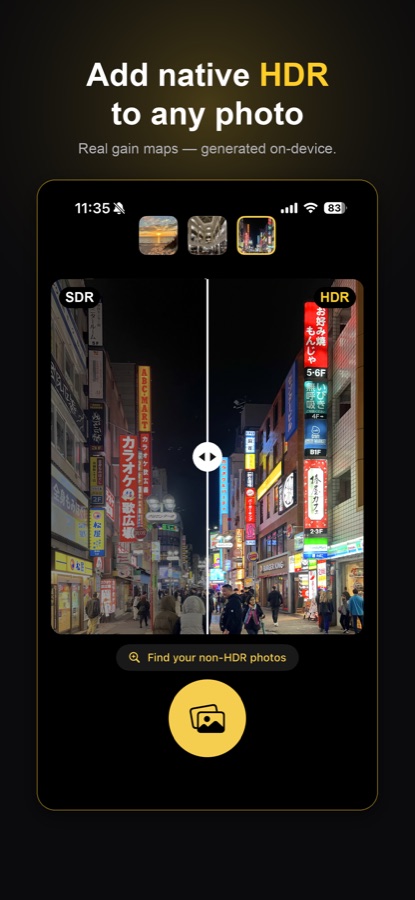
Glowroom adds a real HDR gain map to any photo — the same mechanism behind iPhone HDR photos, not a filter. Old shots, screenshots, anything: convert SDR to HDR so it glows on HDR displays and still looks right everywhere else. Entirely on your device.
 Scan with your iPhone
to get the app
New to this? Read the guide: HDR gain maps, explained →
How it works
Three steps from SDR to HDR
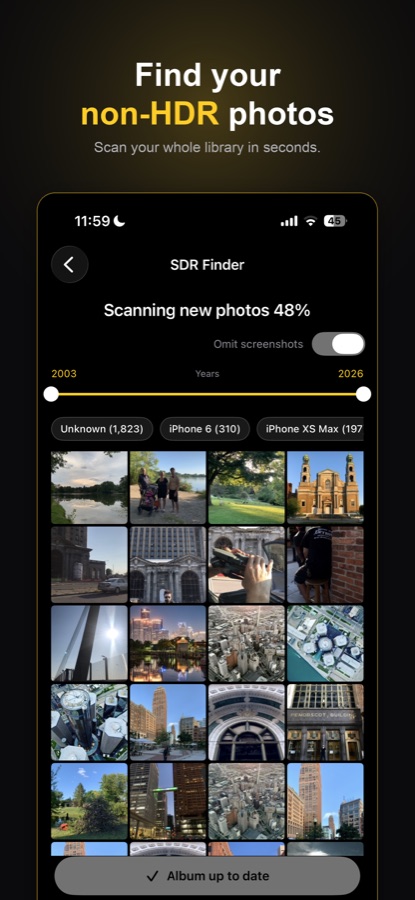
Find your non-HDR photos
SDR Finder scans your whole library on device and collects every photo without HDR — filter by year and device, skip screenshots — into one album.
Synthesize the gain map
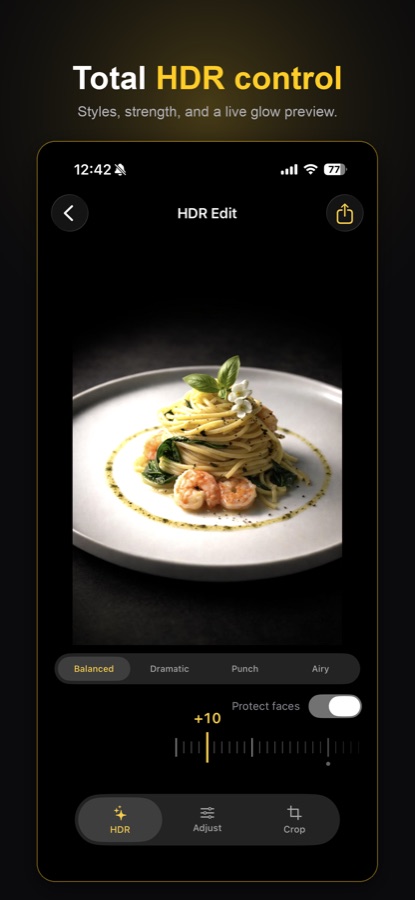
Pick a look — Balanced, Dramatic, Punch or Airy — set the strength, and watch the glow in a live preview. Glowroom builds a real HDR gain map from the photo's own light.
Save, with HDR intact
Save as HEIC or Adaptive HDR JPEG with the gain map embedded. It earns the HDR badge in Photos, and you can revert to the original any time.
More than conversion
Full image editing suite
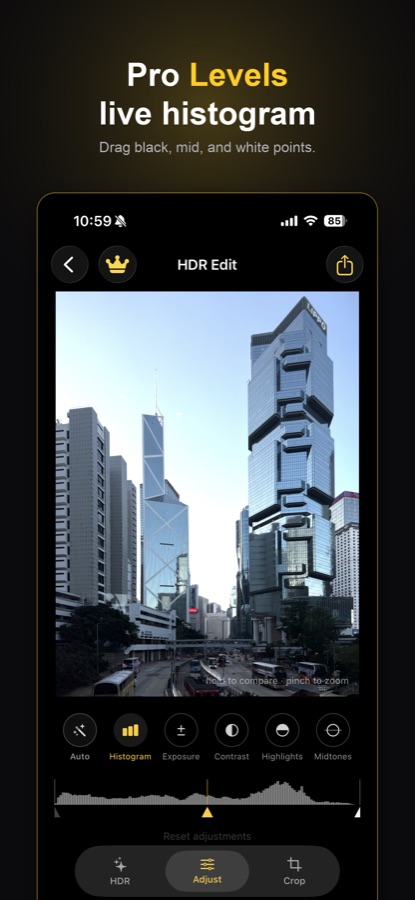
Relight photos that already have HDR, and fine-tune anything with a pro adjustment studio — always on device, always with the gain map preserved.
Guide
HDR gain maps, explained
What HDR actually means in a photo, what a gain map is, why your older photos are SDR, the difference between real HDR and a "HDR filter", where HDR photos display, and how to convert SDR to HDR on iPhone.
Read the guide
FAQ
Questions, answered
What is an HDR gain map?
A second, lightweight layer stored inside a photo that tells an HDR display how much brighter each pixel is allowed to go. The base image stays a normal SDR photo, so it looks right on any screen; on an HDR display the gain map lets highlights glow. It's how iPhone HDR photos work, and it's the standardized way (Adaptive HDR / ISO 21496-1) to share HDR photos. Read the full guide.
Can Glowroom convert an SDR photo to HDR?
Yes — that's what it's for. Glowroom analyzes an ordinary SDR photo and synthesizes a real HDR gain map for it, so the photo earns the HDR treatment in Apple Photos and glows on HDR displays. It works on any photo in your library, including old ones and screenshots.
Is this real HDR or a filter?
Real HDR. A filter only changes the pixels of a normal SDR image. Glowroom writes an actual gain map into the file — the same mechanism the iPhone camera uses for its own HDR photos. The photo shows the HDR badge in Photos and displays with extended brightness on HDR screens.
Where will the HDR show up?
Anywhere gain-map HDR photos are supported: the Photos app on recent iPhones, iPads and Macs with HDR displays, and apps and services that read gain maps. Glowroom saves as HEIC or Adaptive HDR JPEG so the HDR travels with the file. On a non-HDR screen the photo simply displays as its normal SDR version.
Does Glowroom upload my photos?
No. Everything — the library scan, the gain-map synthesis and the editing — runs entirely on your device. Nothing is uploaded and no account is required.
Is Glowroom free?
Free to download and free to start, with no account. Optional in-app purchases unlock more; they're managed through your Apple ID and can be cancelled anytime in Settings → your name → Subscriptions.
Give your photos the glow they were shot with.
Free to start · no account · iPhone & iPad
Scan with your iPhoneto get the app
Legal & documents
Support & contact
Questions, feedback, or data requests — visit support or email support@vlodkodesign.com.