
Guide
HDR gain maps, explained — and how to turn SDR photos into true HDR on iPhone
What "HDR" really means inside a photo file, why most of your library is still SDR, the difference between real HDR and an HDR filter, and how to convert a photo so it actually glows.
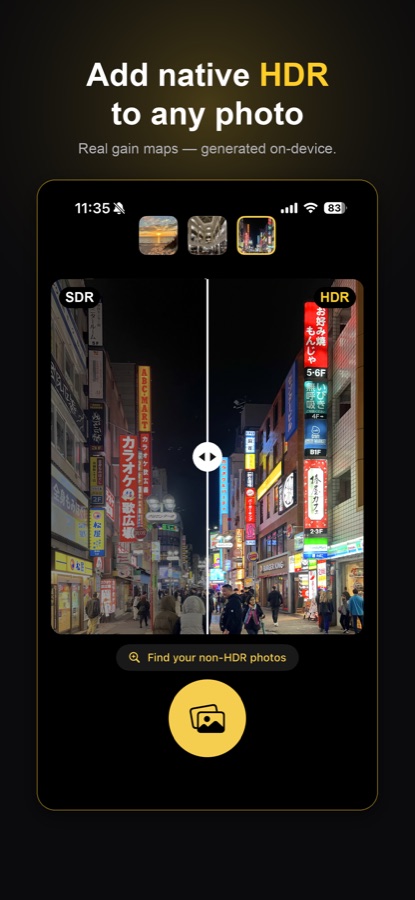
What "HDR" means in a photo
Two different things get called HDR, which is where most confusion starts. The old one is HDR capture: the camera takes several exposures and merges them so a scene with bright sky and dark shadows keeps detail in both. The result is still a normal SDR file — it just avoided blowing out the sky.
The new one is HDR display. Modern screens on iPhones, iPads, MacBook Pros and good monitors can go far brighter than the old "white" of a standard image. A photo that carries HDR information can use that headroom: the sun, a neon sign, a reflection or a candle flame renders with real brightness instead of being clipped to paper-white. That is the "glow" you see in iPhone photos on an iPhone — and the thing this guide is about.
What an HDR gain map is
A photo file can't simply store "brighter than white" pixels and still look right on every screen. The solution the industry settled on is the gain map: the file keeps a normal SDR image as its base, and adds a second, lightweight layer that says, pixel by pixel, how much brighter the image is allowed to go on an HDR display.
- On an SDR screen the gain map is ignored — you see the base image, and it looks correct.
- On an HDR screen the gain map is applied — highlights are pushed beyond SDR white, within what that particular display can do.
Because the base image is untouched, a gain-map photo never looks broken anywhere. That is why it became the standard: Apple calls it Adaptive HDR (what every iPhone photo since iOS 18 uses), the international standard is ISO 21496-1, and Android's version is Ultra HDR. Gain maps travel inside HEIC and JPEG files, so the HDR survives saving, sharing and backing up.
In one line: a gain map is what turns a normal photo into an HDR photo — not brighter pixels, but permission and instructions for an HDR display to make the highlights glow.
Why most of your photos are still SDR
Phones only started writing gain maps recently. Everything before that — and everything that never came from a phone camera — has no gain map at all:
- Photos from older iPhones and from most dedicated cameras
- Screenshots, downloads, scans and photos sent through apps that strip HDR
- Anything edited or exported by software that only outputs SDR
Those files carry only the SDR base, so even on the best HDR display they show at ordinary brightness. Converting SDR to HDR means synthesizing a gain map for a photo that never had one.
Real HDR vs. an "HDR filter"
Plenty of apps offer an "HDR" effect that simply boosts contrast, clarity and saturation. The result may look punchier, but it is still an SDR file: there is no gain map, no extra brightness available, and Photos will not badge it as HDR. It is a look, not a capability.
Real SDR-to-HDR conversion leaves the base image natural and writes a genuine gain map into the file. The dynamic range a gain map describes is largely already implied by the photo's own tones — the sky, lights, reflections and highlights — so a good converter can analyze the image, build a gain map from that light, and produce a photo that HDR displays render with extended brightness while the SDR version stays exactly as pleasant as before.
That is what Glowroom does: it synthesizes a real HDR gain map on your device and writes it into a HEIC or Adaptive HDR JPEG. The photo gets the HDR badge in Apple Photos because it is an HDR photo.
Where an HDR photo actually looks HDR
You need two things: a display with HDR headroom, and software that reads the gain map.
- Displays: recent iPhones (iPhone 12 and later), iPad Pro and MacBook Pro with XDR displays, Pro Display XDR, and HDR-capable monitors and TVs.
- Software: Apple Photos on iPhone, iPad and Mac renders gain maps natively; a growing set of apps and services do too.
On any screen or app without HDR support the same file simply displays its SDR base. Nothing looks wrong — you just don't get the glow. (Web browsers are catching up, which is why the comparison at the top of this page is a screenshot rather than a live HDR image.)
How to turn an SDR photo into HDR on iPhone
Find the non-HDR photos
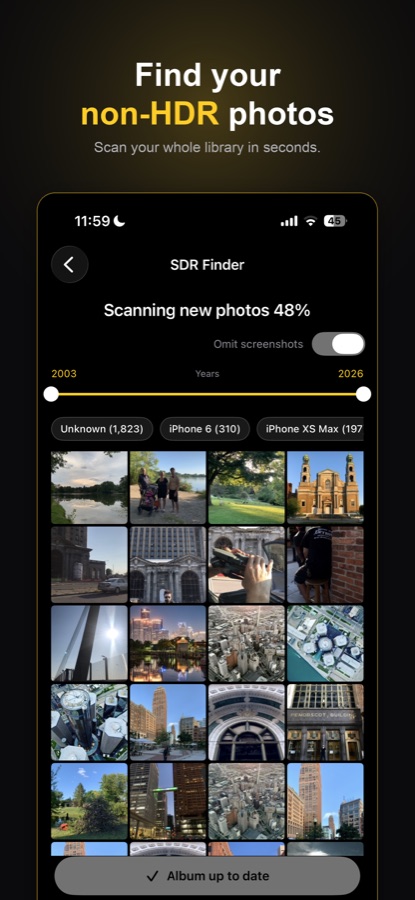
Open Glowroom and run SDR Finder. It scans your whole library on device and collects every photo without a gain map — filter by year and device, skip screenshots — into one album.
Synthesize the gain map
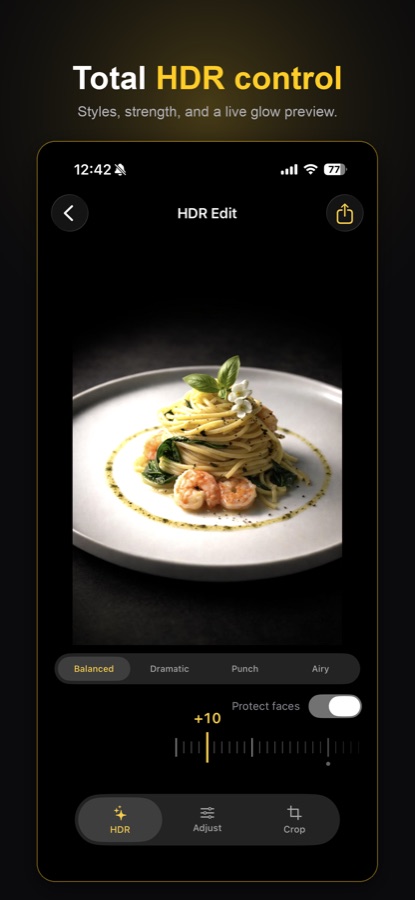
Pick a look — Balanced, Dramatic, Punch or Airy — set the strength, and watch the live glow preview. Protect Faces keeps skin natural. Glowroom builds a real gain map from the photo's own light.
Save with HDR intact
Save as HEIC or Adaptive HDR JPEG with the gain map embedded, or update the original reversibly. It gets the HDR badge in Photos and glows on HDR displays.
Frequently asked questions
What is an HDR gain map?
A second, lightweight image stored inside a photo file that tells an HDR display how much brighter each pixel may go than the normal (SDR) version. The base image stays a standard SDR photo, so it looks correct on any screen; on an HDR display the gain map is applied and highlights glow. It's the mechanism behind iPhone HDR photos and the standard for sharing HDR photos (Apple Adaptive HDR, ISO 21496-1; Android calls its version Ultra HDR).
Why are my older photos SDR and not HDR?
Phones only started writing gain maps recently, and screenshots, downloads, scans and photos from older cameras never had one. Those files carry only the SDR version, so they display at normal brightness even on an HDR screen. Converting SDR to HDR means synthesizing a gain map for them.
Can you really convert an SDR photo to HDR?
Yes. The dynamic range a gain map describes is largely already implied by the photo's own tones — bright skies, lights, reflections, highlights. Glowroom analyzes the image, builds a real gain map from that light and writes it into the file, so the photo becomes a genuine HDR photo that Apple Photos badges as HDR and HDR displays render with extended brightness.
What's the difference between real HDR and an HDR filter?
An HDR filter only changes the pixels of a normal SDR image, usually by boosting contrast and saturation — the result is still an SDR file with no extra brightness available. Real HDR keeps the base image natural and adds a gain map, so an HDR display can push the highlights beyond SDR white. Glowroom writes a real gain map; it's not a filter.
Where will an HDR photo actually look HDR?
On screens with HDR headroom — recent iPhones (iPhone 12 and later), iPad Pro and MacBook Pro with XDR displays, and other HDR monitors — in apps that read gain maps, starting with Apple Photos. On a screen or app without HDR support the same file simply shows its normal SDR version.
Which file formats keep the gain map?
HEIC and Adaptive HDR JPEG both carry the gain map inside the file, so the HDR travels with the photo when you save, share or back it up. Glowroom saves in both, and can update the original in your library reversibly.